The simplest building blocks of a stream are video, audio, and content. Each of these elements can get broken down into overlays, emotes, determining which games or topics are ideal for your community by viewership or hype, and so forth. All of this makes it easy to overlook audio. While there are successful streamers in every category of content, and even successful no-cam and avatar streamers, lousy audio just does not work. We find it to be the No. 1 retention killer.
If you find our weekly tips helpful, Follow us on X where we post content built to help streamers grow and retain their audiences.
Why dialing in your audio should be a top priority
There’s a short amount of time to keep viewers that clicked on your stream. A lot of what makes or breaks viewership is quality of life. A simple rule of thumb is that it’s better to be too loud than to be too quiet. There’s only so much volume people can turn up on their end; however, volume can generally be turned down much easier.
If a viewer is straining to hear you, they are going to bounce. Poorly balanced audio where your content is too loud and you are too low, and vice versa, is generally not worth dealing with for a new viewer. It is just too uncomfortable. The goal should be loud, clear, and balanced.
Getting the Basics Down (OBS)
Tip: It helps to keep any external knobs in a set place and work your audio levels in OBS.
Audio has a hierarchy: first there’s you and your voice, then there’s the gameplay, and after that there are things like background music. (Keep in mind that this doesn’t apply to you if you’re a DJ or music streamer). For the loudest level, voice, we want our voice input to rest around -6dB. This makes sure your voice is loud and clear, and prevents clipping. Your desktop audio should aim to be about -15dB from your Mic/Aux input.
Notice that this refers to the actual soundwave amplitudes and not the sliders to the left of the waveform. Background music should sit about -15dB from Desktop Audio. The sliders are there to quickly shift where these outputs land. Some games are louder than others. A few seconds should put you where you want to be.
This is cool, but filters are the real difference makers.
OBS Filter Rundown
Here’s what each filter does in simple terms:
-3-Band Equalizer: Like a guitar amp, you get to adjust bass, mid, and high frequencies to your liking. It probably won’t put bass in your voice, though.
-Compressor: Lowers loud peaks above a threshold so you don’t blow up people’s ears when you scream for whatever reason.
-Expander: Subtly lowers room ambiance by reducing the volume of sounds below a set threshold.
-Gain: Allows you to increase/decrease the volume of the track beyond what’s available at your interface, PC settings, or OBS amplitude sliders.
-Invert Polarity: Flips the waveform upside down. Helps with hollow sounds that can happen when more than one mic is being used.
-Limiter: One of our favorites, this keeps audio from going above a certain level (this keeps content from overriding your voice).
-Noise Gate: This mutes all audio until a specific threshold is crossed. Good for voice tracks. It can keep fans and keyboard clacking out of the audio mix while you’re quiet.
-Noise Suppression: This is an algorithmic noise gate that analyzes and filters out ambient noises.
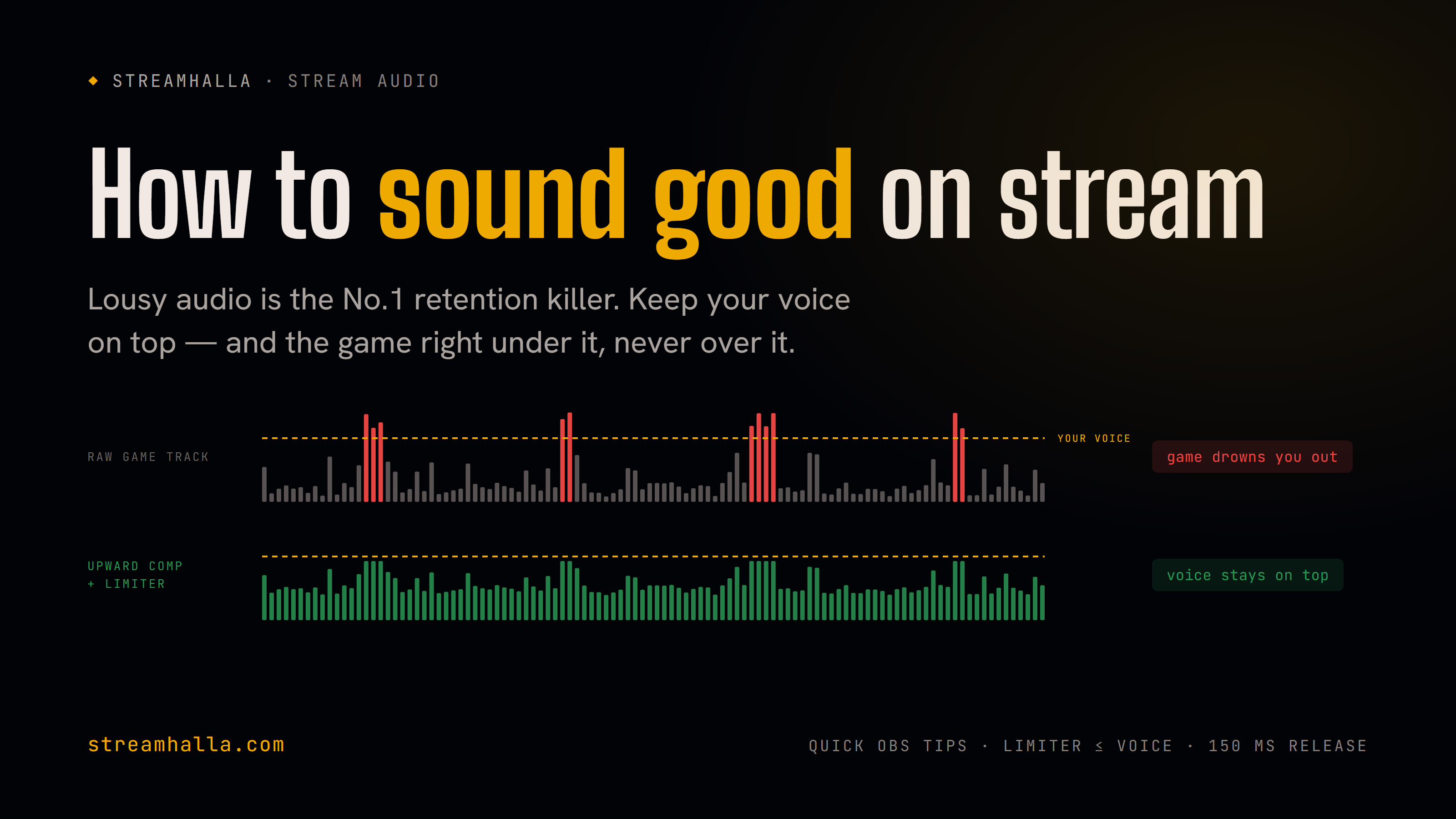
-Upward Compressor: Another one of our favorites. This makes sounds below a certain threshold louder while keeping loud sounds the same.
A Setup We Like
One setup we like is using an upward compressor and limiter on the game track. This lowers the loud sounds and raises the quiet ones. This makes it so both loud and quiet sound effects can be part of the track while not overriding your voice on stream. Make sure the limiter threshold is set to no higher than where your voice rests. Setting a slightly slower release of around 150ms helps make these audio level transitions seem smoother as well.
Of course, we throw a compressor on the mic set slightly below clipping levels to make sure that an exciting moment doesn’t hurt the viewer’s experience. Applying the upward compressor and limiter to your game track is a night-and-day difference and we encourage you to try it. Make sure to experiment and see what you can make happen with your audio. Let’s make sure this fundamental stream element is working in your favor.